How to use Simple CRM well so that Happy finds leads for you?
Happy, from version 2.0 beta (available on 15/11/2016), finds leads for you. These potential customers will only be B2B customers present in France and/or Belgium. Important note: this feature is free.
For those who are not familiar with this possibility, here is a short video :
In order for Happy to find leads, it must be able to analyze data in order to launch searches.
It is therefore ESSENTIAL that when you enter a company code, you specify :
SIRET number if it is a French company
VAT number if it is a Belgian company or a French company that has a VAT number
The address of this company
Secondly, it is essential to properly manage your sales opportunities.
For those who are not familiar with interaction management, it is imperative to read this explanation: http://www.simple-crm-support.com/2016/04/limportance-de-maitriser-la-notion.html
In the case of a sale, the interaction evolves from the first contact to a conclusion that is either positive (SALE WON) or negative (SALE LOSSED):
It is also ESSENTIAL to respect these steps well and to place, at the conclusion, the interaction either in WINNED or LOSED, and to define its state in TERMINE:
As your work progresses, Happy will send you lead proposals, which will appear in your daily calendar:
In this interaction, you will find attached documents that are potential lead sheets:
If you click on the card a document will quickly be downloaded on your computer, document that opens a tracking card. Buttons, present in the file, will allow you to track this potential lead on the web, in order to check if this lead really interests you:
If this lead seems relevant to you, you can import it into your Simple CRM:
This import will create a company record and a sales interaction that you will find de facto in your daily calendar:
It should be noted that inside this interaction, you will find the linked form again, which will allow you to use the tracking tools again if necessary, to find the website of this company, its phone number, its employees on Linkedin, etc..
Can I disable this feature?
The feature is enabled by default but of course, from the user administration area, you can disable this feature of HaPPi.
For that:
1) Go to the CRM Admin (top menu -> CRM Admin)
2) Go to tab "1. List of users"
3) Open the relevant user profile
4) Uncheck the box "Receive leads by Happy" and click on the button Save
When you enter an Interaction, you can start a stopwatch.
When you stop it, it will then charge a cost to the work done.
The cost is calculated on the basis of your hourly cost that your Simple CRM administrator / internal manager will have assigned to your user profile from the administration interface.
The average cost of an employee is 28 Euro per hour.
You can open several Simple CRM windows at the same time and thus better exploit the information stored in your CRM software online.
To do this, simply point to an element with your mouse and click with the MOLETTE.
An example below: we are in a contact person file and want to view the calendar at the same time. To do this, we call the APPLICATION LAUNCHER, point to the Interaction module and click with the wheel. This opens Interaction in another web browser tab. Then simply navigate between the tabs.
It is possible to use Simple CRM in aircraft, or in areas without 3G coverage.
To do this, you have to work offline, via an offline methodology, explained in this tutorial. This technique works equally well on Windows, Mac, Linux, Tablet PC or mobile phone.
The purpose of this tutorial is to allow you to access your contacts and calendar offline, create Interactions and view reports/listings.
The contacts
First step you need to have your contacts on your computer (or tablet/mobile).
There are two possibilities:
either you synchronize all Simple CRM contacts with Google Contact, then upload these contacts to Outlook/Thunderbird/Entourage/Mail
either you synchronize only the contacts that interest you with Outlook/Thunderbird/Entourage/Mail via the VCARD import (this technique is probably more interesting because you synchronize only what really interests you)
Explanations related to Google Contact synchronization :
Synchronization for Google Contact APPS > http://logiciel-crm-grc.blogspot.fr/2013/05/mise-jour-de-la-synchronisation-de.html
Synchronization for Google Contact > http://logiciel-crm-grc.blogspot.fr/2013/04/modification-de-lautorisation-google.html
Synchronisation Outlook-Google Contact > http://www.crm-pour-pme.fr/index.php/faq/11984-comment-synchroniser-outlook-avec-simple-crm-
Synchronisation Thunderbird-Google Contact > http://www.crm-pour-pme.fr/index.php/faq/11985-comment-synchroniser-thunderbird-avec-simple-crm-
Synchronisation iPhone / Android - Google Contact > http://www.crm-pour-pme.fr/index.php/faq/4267-comment-synchroniser-votre-compte-google-contact-et-votre-mobile-iphone-android-avec-notre-logiciel-crm
Your calendar
You can store your Simple CRM calendar offline by adding it as a web/ical/distant calendar in Outlook, Thunderbird, iCal or your mobile phone.
To do so, consult the documentation available on: http://crm-pour-pme.fr/pdf/DocumentationSimpleCRMv2_0.pdf, item "6.4.8. Synchronizing the calendar with Iphone, Android, BlackBerry, Windows Mobile, Outlook, and Thunderbird mobile phones" on page 43.
Create Interactions in Simple CRM in offline mode
You have a Simple CRM e-mail that allows you to forward e-mails in Simple CRM and then transform them into Interaction(s). See explanation on: http://logiciel-crm-grc.blogspot.fr/2012/12/deploiement-de-la-fonctionnalite-e-mail.html
Your e-mail client (Outlook/Thunderbird/Entourage/Mail) allows you to work offline. The created e-mails are stored and sent as soon as the computer has access to the web again.
All you have to do is send an e-mail to your Simple CRM address, with the Interaction to encode, and then find it in Simple CRM.
If you don't know your Simple CRM email, just go to: Main Menu -> Documents -> (click on the button) Scan a document.
Take some work with you
Simple CRM allows, as you know, to generate many reports.
You may want to generate a report and study it in detail in an aircraft, train, etc.
You can very simply perform this operation. For example, go to Analytics and select :
Display: Pipe by company
Status: In progress
Type : Sale
You will then receive the current sales report.
Then go to the left menu and select the printer.
As the print format, choose the LANDSCAPE format, then select a PDF printer.
You can thus study these figures, in offline mode, via the generated report.
Note: PDF printing is standard on Mac and Linux. For Windows PCs, please install the free software: http://fr.pdfforge.org/pdfcreator
It's as simple as it sounds to you; our software allows you to use the workflow that suits you best.
However, if you need to link several contacts to a company, we advise you to first create the company and then create contacts on the fly.
Indeed, Simple CRM allows you to enter several contacts one after the other; this saves time, thanks to the button "REGISTER AND CREATE ANOTHER CONTACT LINK TO THE COMPANY".
It is therefore delivered to all our customers in BETA version; no need to contact support for spelling mistakes and misinterpretation.
This function will only be accessible under Chrome (except audio playback which works on all browsers).
Only a limited number of customers will have access to the mobile ALPHA version. Indeed, for mobiles, it is necessary to use very precise smartphone models and the integration is still unstable. Therefore, some customers who volunteered will test the mobile version for several months to help us stabilize it.
Voice dictation is present in two places. First, in the left menu; the notepad is transformed into a dicta-note:
Just click on the microphone, talk, then click again to stop recording; magic!
Then you will find this function in the Interactions:
Warning: at the first use, or if you delete the preferences of your browser, once you have clicked on the "microphone" icon, you must click on the "Allow" button that appears at the top of the window :
You also see a speaker on the left. If you click, Simple CRM will read the contents of the Memo field. This reading functionality is also available in the Company Memo and Contact fields.
QR Codes are a great opportunity to link a mobile phone to online content.
Here are some examples of practical applications: https://www.1min30.com/social-media-marketing/10-exemples-dutilisation-de-qr-codes-cross-canaux-16559
Another application example: if you print paper documents, create a QR Code based on the URL (web address of the page) of the company or contact person or a project.
Thus, you can scan the QR Code with your mobile phone and directly arrive on the company or contact page, the complete project schedule, with your phone; ideal for creating a physical link between paper files and Simple CRM.
You want to limit a user's access to certain contacts, companies, interactions and projects that directly concern them. On the other hand, other users must be able to access all contacts, companies,...
Examples of use: prospecting by geographical sectors, trainees, external speakers...
To do this, you must create one project per user with limited rights.
A project user is a user who sees nothing, except what he is allowed to see through projects to which he is invited to work.
Proceed as follows:
1) In the Admin module, change the user type for each user whose rights you want to limit (change them to "Project User").
2) Create one non-public project per user
Name the project, for example: "Southeast Prospecting"
Uncheck the "Public Project" box
Save the project.
3) Link this project to the user concerned
In the project user list, select the relevant user.
Click Save.
4) In the project, link the contacts that are concerned by the user to the limited rights.
5) Last step: Assign a default project to the user following the explanations on this article.
That way:
each "Project User" will only have access to the contacts, companies and interactions that concern him, and only those ones
other related users will have access to relevant contacts, companies and interactions
administrators will have access to all information, no matter what happens.
To know how to manage projects, please refer to the Simple CRM documentation downloadable here: http://crm-pour-pme.fr/pdf/DocumentationSimpleCRMv2_0.pdf
See pages 46 and following for project management, and pages 70 and following for user type management.
Practical example
Pierre is a sales representative who manages a portfolio of 200 clients in his "Southeast" geographic area, whom he must contact regularly.
Here is the procedure to limit Pierre's access to these 200 clients:
1) In the Admin module, the Simple CRM administrator changes Pierre's user type. From "User", Pierre becomes "Project User".
2) In the Project module, the Simple CRM administrator creates a non-public project called "Southeast Prospecting". He adds Pierre to the users of this project.
3) The Simple CRM administrator selects and adds Pierre's clients to the project, either one by one, or directly from an area of interest, through a prospecting campaign.
You can see the video explanation here: http://comment-utiliser-simple-crm.blogspot.fr/2014/04/comment-organiser-une-campagne-de.html
4) Done. Pierre does not see any clients except those assigned to him through the "Prospection Sud-Est" project.
5) Last step: assign a default project to Pierre following the explanations on this article.
Assignment of customers to another sales representative
Now suppose Pierre leaves the company. It is Paul who takes over Pierre's client portfolio.
Here's how to assign all of Peter's clients to Paul:
1) Open the "Southeast Prospecting" project
2) Remove Peter's access to this folder
3) Add user Paul to this folder
4) It's done! In 4 clicks, you assigned Peter's clients to Paul.
Simple CRM offers several ways to manage incoming and outgoing emails, to stay as close as possible to your work habits.
Management of incoming emails (=reception)
1) If you are using Gmail, Google Apps, Outlook Online, Outlook 365 or Amen email
In case you usually use a Gmail or Google Apps email address, it is not necessary to store emails in Simple CRM.
Use the magnifying glass icon to search Gmail or Google Apps, directly from Simple CRM, for emails exchanged with a contact (see "Searching emails in Simple CRM" below.
Alternatively, you can also store your important emails in Simple CRM (see below).
2) If you use an email other than Gmail, Google Apps, Outlook Online, Outlook 365 or Amen
The easiest way to store incoming emails in Simple CRM is to forward each email to be stored in your Simple CRM email address.
You will find this email address in the user list (top menu -> Admin -> User list).
Every time you receive an important email on your usual email address, forward the email to your Simple CRM email address.
Then, in Simple CRM, go to the Simple CRM desktop module (top menu -> Simple CRM desktop) or in the Interaction module (top menu -> Interaction).
Then click on the button "Check inbox".
Each email received in your Simple CRM mailbox is transformed into a "0 - Email" interaction, and placed in the "Open" state.
Open each interaction created and qualify it (contact, company, type, state...).
Any email attachments are stored in the interaction (below the interaction form).
Management of outgoing emails (=sending)
Technically speaking, Simple CRM does not send emails. In order not to impose a change in your work habits, Simple CRM uses your usual email software by opening a new message window and automatically setting the recipient's email address, subject, and email text.
To prepare an email to send from Simple CRM, there are several solutions.
1) From a contact card
If you have entered a contact's personal email address, this email address appears on the contact's file. Simply click on the email address to open a new message window in your usual email software.
Similarly, if you have entered a contact's business email address, click the Email icon next to the email address.
2) From a list of contacts or interactions
From a contact list, click the contact's email address.
From an interaction list, move your mouse over the "Info" icon of the contact.
A tooltip appears, click on the corresponding "Email" icon.
3) Using Simple CRM email templates
You will find an explanation of how to use the email templates on this page: http://comment-utiliser-simple-crm.blogspot.fr/2014/03/comment-faire-pour-que-simple-crm.html
4) Store outgoing emails
If you want to store the emails you send to a contact, configure your email software to automatically send a copy of each email you send, to your Simple CRM mailbox.
You will find the configuration information below:
For Microsoft Outlook
For Mozilla Thunderbird: go to the "Edit" menu: "Account settings" then for the desired account under "Copies and folders" there is a field under "When sending messages, automatically" where you can specify the copy and hidden copy addresses to automatically send emails to.
For GMail webmails, this configuration is useless (see below).
Search emails in Simple CRM
1) If you are using Gmail, Google Apps, Outlook Online, Outlook 365 or Amen email
You must first tell Simple CRM who your email provider is:
go to the Admin module (menu up -> Admin)
if you are a Simple CRM Administrator, click on your username
in the "Webmail search" field, select your email provider
click on the "Save" button
Once your email provider is configured:
Use the magnifying glass icon to search Gmail or Google Apps, directly from Simple CRM, for emails exchanged with a contact.
From a list:
2) If you use email other than GMail, Google Apps, Outlook Online, Outlook 365 or Amen
Using email forwarding to the Simple CRM inbox (see "Managing incoming emails" above), emails are stored in your Simple CRM database.
As you qualified the incoming emails, you can then search for them by consulting the contact or company file linked to the email.
This mini guide allows you to quickly configure and get started with your ERP.
Simple CRM and Simple ERP live in parallel. You can navigate from one world to another without worries, thanks to the buttons provided for this purpose in the TOP menu.
An ERP INTERACTION (estimate, purchase order, invoice or delivery note) is called a SUPER INTERACTION.
Since the two worlds live in parallel, you find exactly the same information in these two universes. Example: if you create today a SUPER INTERACTION in the ERP, like a quote, you will, of course, see this SUPER INTERACTION in the Simple CRM OFFICE. If you click on this SUPER INTERACTION from the Simple CRM desktop, you will automatically switch to the ERP. If you change this SUPER INTERACTION and click SAVE, you will automatically return to Simple ERP.
In short, using Simple ERP will not make you lose your bearings at all: you will work in an environment that will be familiar to you, a workspace applying exactly the same logic as the one you already know.
Now let's review the items you need to configure to make Simple ERP work properly.
1. ADMIN ERP space
To be able to use Simple ERP, the first step of work is to realize the parameter setting.
The settings are available in the ADMIN ERP:
The ADMIN ERP is composed of a series of numbered tabs. It is imperative to follow the order proposed during your configuration.
Issuer Company: An Issuer Company is a company for which you will create quotes, purchase orders, invoices, delivery notes in Simple CRM/ERP. You can have several issuing companies. Each one will have unique numbers.
References: References are unique references that will allow you to distinguish quotes, purchase orders, invoices and delivery notes. You can either change them or leave them like this. Attention that if you have several issuing companies, it would be necessary different references for each company.
Document templates: This is where you can create and customize your documents. Be sure to modify these templates to include your GTC and other important legal text information. Attention: if you wish to apply discounts, you must choose the document templates with discount. For more details on document creation, see the dedicated explanation: How to create a document template with Simple ERP?
TAX management: Here you can create/modify the current VAT rates, for example.
Unit management: Here you can create/modify/deactivate the available units.
Warehouse management: If you work in multiple warehouses, you can create these different storage locations. Tip: If you have a very large warehouse, you can create zones so you can find your way around. Example: Warehouse Paris - Zone A, Warehouse Paris - Zone, B, etc.
Product categories: Categories allow you to sort your products by family in order to find them more easily. Example: Fruit, Vegetable, Meat, Cereal.
ERP preferences: These are sensitive parameters that allow you to define ERP automatisms, such as when the stock movement is applied (to the purchase order, to the invoice or to the delivery?).
User rights: This is where you define who can do what.
FOCUS ON ERP PREFERENCES
ERP preferences are rich and sometimes a little complex to understand.
We will review the proposed options.
General Preferences
Automatically generate an invoice after a won sale: this step allows you to activate the automatic creation of an invoice as soon as a Sales Interaction is passed to the "Sell - 06 - Gained Sale" step.
Stock modification step: if you want the stock to be automatically removed from a delivery, after a sales process, you can choose when this action will be performed automatically (when ordering, invoicing or issuing the delivery note). If you do not want the stock to be changed automatically, this option is also available.
In the projects, are limited to: as soon as a super interaction is created, a history project which will gather all the versions of the documents, the estimates, the purchase order and the invoices, is created in order to centralize the complete history of the sale and thus to ensure a perfect traceability. This history file proposes a budget total. See full explanation on: http://www.simple-crm-support.com/2015/07/a-quoi-sert-lentite-historique.html Depending on the activity of the companies, not all companies necessarily want to see the same source of budget. You can thus choose if the sum of the project is calculated on the basis of the estimate, the purchase order, the invoices or the delivery order.
Automatically validate goods movements: This saves time by automatically validating a goods movement after its creation.
To be able to order out of stock: To activate if you wish to allow this possibility.
Number of decimal places (between 0 and 6): The recommended number of decimal places is 2.
Additional high margin on documents: only to be used for very specific document layouts.
Activate purchasing management: Purchasing management allows the creation of "purchase order forms", which integrate your supplier's catalogue references.
Accounting preferences
Sales journal accounting code: This field allows you to enter the sales journal code of your accounting software (example: "VTE"). This code will be exported into the accounting export file generated by Simple CRM which will allow your accountant to automatically import the entries into his accounting software.
Reminder of unpaid invoice by email
At D+1 of the maximum payment time, Simple ERP can send a reminder of unpaid invoice.
For that, it is necessary that the contact, responsible for the payment of the invoices suppliers is well related to the invoice.
This configuration allows you to indicate the contact details that will send the reminder (even if Simple ERP will send this reminder).
If you want to modify the e-mail, go to Simple CRM -> Admin CRM -> 6. Email templates -> Search for the ADMINISTRATIVE template, named: "Unpaid invoice(s) email".
More information in the dedicated explanation: How to configure the invoice reminder by email?
2. Catalogue products / services
Once this configuration is done, you will now create your catalog of products and or services.
You must have created at least one product category in Simple ERP (see above).
Go to PRODUCT, then click the ADD PRODUCT button.
Only the SALE part is mandatory. If you do not wish to manage a purchase, no need to complete the purchase part.
If you do not manage stock, do not forget to uncheck this option at the bottom.
It should be noted that the descriptive NOTE of the product can be modified if necessary to the drafting of a document of type estimate, purchase order, invoice or delivery order.
Once the products are created, if you have stock, you will have to establish your initial stock level. To do this, please read this explanation: http://www.simple-crm-support.com/2015/07/comment-ajouter-des-produits-dans.html
3. Short focus
Simple ERP allows you to follow a complete work process: Quotation -> transformation into Purchase Order -> Transformation into Invoice -> Transformation into Delivery Order -> Management of goods movement.
However, who can do more, can do less. Therefore, if necessary, you can create an invoice directly in the case of a counter sale, for example.
When you create a Quotation and transform it into a Purchase Order, for example, the products / services selected, as well as their quantity, are also selected, but you can of course modify them.
You can make several versions of an estimate or an order form. Only invoices and delivery notes can only be issued once.
4. Information to read
Depending on your needs, this website contains on the right a menu with many specific explanations.
All explanations related to ERP are preceded by the prefix: ERP in the sorting module, on the right.
Here are some essential links to help you get started:
How to add a comment on product lines in sales documents?
How to manage the format of the numbering of ERP documents?
How to invoice an order in several times with Simple ERP?
I have two types of customers, some have to pay my bills immediately, others at 30 days, how do I do?
How do I view Quotes, Purchase Orders, Invoices or Delivery Notes over a given date range?
How to manage purchases in Simple ERP?
How to periodically invoice the same products? paragraph "How to create a recurring invoice"
How to create a credit note?
5. Free access for your accountant
Your accountant can have access to Simple ERP.
There is indeed a special license, provided for this purpose, included in your subscription.
This allows your accountant to be autonomous and to recover all the information he needs in order to carry out your accounting. Full explanation here: http://www.simple-crm-support.com/2016/03/comment-fournir-mon-comptable-un-acces.html
Simple CRM can send appointment reminder e-mails automatically, thanks to Happy, the intelligent assistant present in Simple CRM.
For each appointment for which you have activated the e-mail reminder, an e-mail will be sent 24 hours before the appointment date, early in the morning and a second e-mail will be sent early in the morning, on the day of the appointment.
The e-mail content is generated via a default template. This model is a model of type SALE whose name is: "Reminder of our appointment".
If necessary, you can modify the content or even create another template. To do this, go to: Top menu → Admin CRM → Email templates -> and select the template "Reminder of our appointment".
WARNING however that it is necessary to respect a precise syntax:
DATE} : to insert the date of the appointment
TIME} : to insert the appointment time
RECALL_EMAIL} : to insert your e-mail
RECALL_TEL} : to insert your phone
RECALL_NAME} : to insert your first and last name
TZ} : user and de facto time zone of the appointment
Example of a "home-made" model:
Hello {PRN},
I would like to remind you of our SIMPLE CRM appointment: {DATE} at {T TIME}, {TZ}.
If you are unable to do so, please contact your account manager by email: {RAPPEL_EMAIL}.
Sincerely,
{RAPPEL_NOM}
To activate the automatic reminder, the interaction must be placed on the MEDIA: "RDV avec rappel par email via Happy".
Important detail: you must specify the coordinates that you wish to insert in your e-mail reminders. The possibility to insert these coordinates is present in your Simple CRM user profile accessible from the top menu → Admin CRM → User list → Click on your username → Bottom of page :
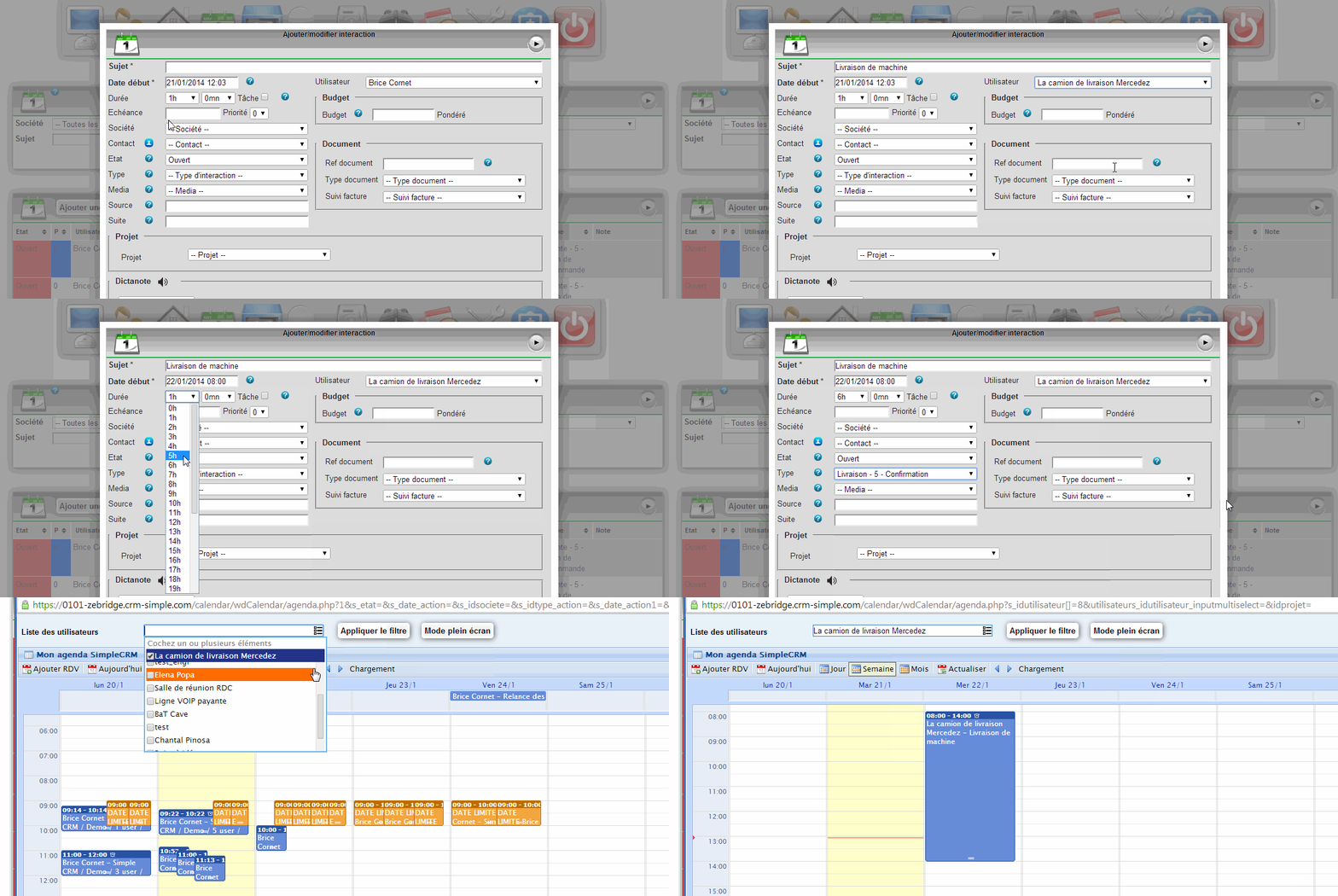
The most common excuse used in the corporate world is "I didn't have time". Simply understanding how Interactions work in Simple CRM is not enough; it is essential to manage your time correctly.
Learning to manage time is learned. To do this, we strongly encourage you to read the Simple CRM manual, chapter "Business Process Optimization". In addition, you can also watch a video that will teach you the techniques to make the phrase "I didn't have time" disappear at:
What is an Interaction?
An Interaction makes it possible to manage all business processes: a sale, a purchase, project implementation stages, etc.
Interactions are visible in two forms: in calendar form (for better visibility of availability over time) and in list form (for better visibility of the information that constitutes the interaction and faster processing).
Interactions are the heart of your activity since it is through them that you manage your time and, de facto, your customer and supplier relations.
FOCUS ON INTERACTION STATES
An interaction can have 3 states:
OPEN: It's planned but you haven't started working on it yet. You are at a standstill, so the fire is RED.
IN PROGRESS: You have started working on it. Courage, it will soon be over, you go towards the light (the light that is YELLOW).
FINISH: You have finished this Interaction. The fire is GREEN, you can continue your journey, move on.
Differences between an appointment and a task
Time consists of two Interaction families: tasks and appointments.
A task is an Interaction not frozen in time. For example, you have to proofread a document this week, with Thursday as the deadline. A task, therefore, has a start date (which is the time from which you can perform this Interaction and a deadline which is the deadline by which this Interaction must be fully performed).
An appointment is an action frozen in time, which begins at a specific time and ends at a specific time. To define the end time, we, therefore, choose a duration for this appointment.
For example, you have an appointment with Mr. Bertrand to present Product X to him on Wednesday from 14:00 to 15:30.
To distinguish a task from an appointment, simply check the TASK box in the Interaction :
It is essential to make this distinction properly. Indeed, if you define all your tasks as appointments when you open your calendar, it will be full! So, if a customer has an urgent request when you open your calendar, it will seem full. Not being able to propose him an appointment quickly, this customer will go to see a competitor. In short: air your calendar correctly by separating tasks and appointments correctly.
Additional information available in the video "I didn't have time".
An interaction evolves over time
Here is the classic error that new users of Simple CRM comment. Phoning a potential customer, they create an Interaction, Status: IN PROGRESS, Type: Sales - 01 Making contact. So far, so good. The potential customer, says he is interested but is currently overwhelmed and asks to be contacted again in three months. Beginners then tend to move the Interaction to Status: FINISH, then create a new Interaction in order to re-contact this potential customer in 3 months.
Error! The idea is to work as little as possible. Then, after this return, click on the HORODATAGE button and write "Potential customer interested but overwhelmed. He asked to be contacted again in 3 months." and change the Interaction date so that it appears in your Simple CRM calendar in 3 months.
Remember that an Interaction is something that evolves over time, up to a conclusion that is either positive (Sale won, Receipt of Positive Delivery, Support Ticket resolved, etc...) or negative (Sale lost, Receipt of Negative Delivery, etc...) and that once this state is reached, underlies de facto the change of the state of the Interaction to TERMINATE.
FOCUS: APPOINTMENT REMINDER VIA HAPPI
When you have an appointment, select the media: APPOINTMENT REMINDER VIA HAPPI. Thus your interlocutor will receive two reminders of appointment: one day before and another, the day of the appointment. Be careful, though! If after the appointment you write in the memo field "Interested customer, make a quote before Thursday", check the box TACHE and place the task tomorrow and well your customer will receive again two reminders for this appointment! Remember, therefore, to change the media to avoid this concern.
Thanks to the time-stamped notes, even if you resume an Interaction 6 months later, you find all the relational history, which allows you to have a much more effective dialogue.
Tip: to distinguish your own notes from a customer return, place the return of your customer in quotation marks (summary of the exchange by phone or extract of the important elements of an e-mail).
FOCUS UPDATE DATE :
The update date is by default the start date of the interaction.
This date is automatically changed in the following cases:
You switch the interaction type to "Purchase - 6 - Reception".
You switch the interaction type to "Delivery - 7 - Positive Reception".
You change the interaction type to "Project - 8 - Final Delivery".
You change the interaction type to "Support - 5 - Confirmation PV".
You switch the interaction type to "Sell - 6 - Win"
For example, this is where you find the moment when a Sales Interaction has been switched to WON SALE. It is this date that actually enables the reports to be produced. Detailed information at http://www.simple-crm-support.com/2016/01/dans-les-rapports-lorsque-je-precise.html
Assign the right types of Interaction to users?
Since Interactions can handle everything, this same flexibility can disrupt users! It is true that for a salesperson, seeing interaction types such as purchase, delivery or administrative has no interest.
In order to facilitate the adoption of Simple CRM by your users, you must, therefore, configure for each user the types of Interaction he will use.
For example in the image below, this sales representative only sees Sales, Private and E-mail Interactions:
Attention: always leave, whatever the profile of the user, the types PRIVE and E-MAIL. Private allows you to model the holidays or a meeting at the dentist and e-mail corresponds to the emails that you transfer in the software (see detailed explanation on http://www.simple-crm-support.com/2015/04/comment-gerer-les-emails-entrants-et.html).
Save time with interaction templates, email templates and speech recognition
To save a maximum of time, you can ask Simple CRM (click for more explanations) :
Enter Interactions for you
Write your emails
Write what you dictate in the note field
Manage recurring interactions (automatic interaction creation)
Good customer follow-up: Tuesday and Thursday reminders
Extract from page 42 of the Simple CRM manual available at: http://crm-pour-pme.fr/pdf/DocumentationSimpleCRMv2_0.pdf
"Many companies neglect the importance of customer care. A study conducted in 2006 published by axRavery (2006) shows that 70% of companies are ignoring/following 50% of leads badly! Yet it is obvious, a customer so the file is well followed, is a customer who feels the quality of your company, it is a customer who is, therefore, much more inclined to sign purchase orders or contracts.
It is therefore essential to remind your clients twice a week during negotiations.
I advise you to make your reminders every Tuesday and Thursday morning.
Why this choice? On Monday, your contacts are drowned by the e-mails of the w-end, the meetings at the beginning of the week, the organization of their planning, etc.. They will not be able to give your application the attention it deserves.
Tuesday morning is therefore a perfect choice for a first friendly relaunch.
Wednesday: too close to Tuesday for a second reminder.
Thursday is therefore the perfect day for the second reminder since on Friday, your interlocutors will already have their minds partly on the weekend.
I advise you to send your reminders by e-mail, based on a defined scenario. Indeed, as you know, Simple CRM writes your emails for you (see point 3.10). With this technology, it shouldn't take you more than 20 minutes to restart all your current business!
To do this, define an accompanying scenario, based on the usual duration of the delay.
For more info.:
SEE THE EXPLANATIONS OF THE FAQ INTERACTION ON: http://www.simple-crm-support.com/search/label/Interaction
Frequently asked support questions (click for more explanations) :
How to see the interactions of other users?
When I consult a contact or a company, I do not see the interactions finished
Can I change the types of interactions?
In reports, when I specify a range of dates, some interactions do not appear
How to create interaction types?
Simple CRM now offers a new module for importing contacts and related companies. This new module has been designed for ease of use.
Warning: if you are working on Mac, you must, from the preparation of the file to import, work with the Libreoffice spreadsheet for Mac. Thank you for reading this article.
Import procedure
1) Prepare your data file, 1000 lines maximum per file, with LibreOffice necessarily. You can download LibreOffice for free.
Save the file in CSV format, UTF8 character set, comma separator (,), quote delimiter ("). See this page to see how to save the CSV file correctly.
2) Go to the module Admin (menu top -> Admin) and click on the tab "3.Import data", then on the button "Assisted import of companies and/or related contacts, in CSV format".
3) Click on the "Browse..." button and choose the CSV file to import.
Click on "Start file analysis".
Wait a few seconds, the contents of the file will appear below.
4) For each column whose data you want to import, choose the field into which the data will be imported.
You must assign a column to one of the fields "Contact - Name" or "Company - Name".
Areas of interest
To assign interests to imported contacts, your file must contain a column containing the interests to be associated with each contact, in the form of a comma-separated list.
For example: "Client,Southwest,Masonry" (without quotation marks) will associate the contact with the three indicated centers of interest.
To assign interests, associate the column containing the interests with the "Contact - Interests" field.
Contact-Company Links
If you want to assign a contact's business data, use the "Contact Company Link" fields at the bottom of the list.
To access all the columns in your data file, scroll the table to the right using the scroll bar at the bottom of the table. Duplicate management
In order to avoid the creation of duplicates, the import module first searches if the contact or the company already exists in the Simple CRM database.
For contacts, the identification is done on the "Contact - Personal Email" or "Company-contact - Pro Email" field.
For companies, identification is done in the order:
on the "Company - Num SIRET" field
in the'Company - VAT number' field
in the'Company - National identifier' field
on the fields "Company - Name", "Company - Postal Code", "Company - Place", i.e. a company is recognized if it has both the same name AND the same postal code AND the same place as an existing company in Simple CRM.
5) Once you have checked that the columns are correctly assigned to the Simple CRM fields, click on "Start import".
Attention, once this operation is done, you will not be able to go back or cancel the import.
A confirmation prompt appears, click Ok.
Wait a few seconds, until the import is done.
A confirmation message is displayed, with the count of the created and updated items.
How do I get Simple CRM to write pre-formatted emails?
From an Interaction in Simple CRM, two drop-down menus allow you to select the email template you want to use.
We provide you with a large number of pre-entered templates. You will thus find models of a quote request, quote feedback request, unpaid invoice reminder, etc.
Of course, you can create your own templates to adapt Simple CRM to your specific needs, whether for sales management, purchasing, administrative tasks, marketing, projects, etc.
These models are created through the Administration area.